
How to Do the 365 Elevator Trend With Two Photos (No Filming)
How to do the 365 elevator trend: put 2 photos on the pins and press Create. Get the 14-second 4:3 elevator take with "365". 720p $9.90, no account.
 365 Elevator AI Team13 min read
The 365 Elevator AI team: we watch every elevator clip we write about, date every view count we quote, and read each price on the tool's own page the day we write.

TL;DR — To do the 365 elevator trend, put 2 photos on the two pins of 365 Elevator AI for TikTok and Reels in your browser and press Create. Photo 1 goes on "Walks in" and photo 2 on "Sings". Your two people take over the trend's own 14-second 4:3 elevator take, with the song under it.
One sings "365" to the camera, and the other plugs in an earbud and tunes out. You don't film, find a CapCut template or write a prompt. One 720p video is $9.90 in one payment, and you don't need an account.
Under the most watched elevator duo so far (2,006,486 views on 25 November 2026), the top comment is "How do you make this effect?", with 735 likes when we read it on 23 November 2026. The same question sits under the account's other elevator posts, in German too: "Wie macht man diesen Effekt?" (German for "How do you make this effect?").
We've built the trend's 14-second take and the song "365" into our generator. The only things you bring are two photos and one decision: who sings and who tunes out.
We read every pin name, button and price in this guide off our live page on 27 November 2026. The Create button names the price before you pay: "Create · $9.90" at 720p.
By the end of this guide, you'll know:
- Who sings: how to cast the loud one and the quiet one.
- The four taps: Walks in, Sings, quality, Create.
- The photos: what to pick so each face and outfit comes along.
- The post: what to write when you share it on TikTok and Reels.
How to Do the 365 Elevator Trend in One Line
You do the 365 elevator trend by casting two people in the trend's 14-second elevator take, and on 365 Elevator AI that's two photos, two pins and one Create button.
- What you bring: two photos, one for the person who walks in and one for the person who sings.
- What's already built in: the trend's own 14-second steel-elevator take, the moves, the earbud and Sampagne's "365" under it.
- What you get: a 14-second 4:3 MP4 with your two people in the elevator take and "365" under it, ready for TikTok and Reels.
You don't film anything, meet up, find a template, write a prompt, install an app or edit. On a phone, the page opens with the trend's post playing at the top and the photo stage just below the title.

Decide Who Sings Before You Do the 365 Elevator Trend
The one decision the 365 elevator trend asks of you is who sings and who tunes out, because the two pins hand out those two parts.
The split goes back to Sampagne's own elevator clip from 10 November 2026, where he sings "365" on the right while a listener on the left has earbuds in. The AI duo edits from @neoausdermatrix33 kept that split from 20 November 2026. The backstory's in the 365 elevator trend explained.
Here's how the two parts split:
- The Sings pin (right): plays the one who sings "365" straight to the camera for all 14 seconds with hand moves.
- The Walks in pin (left): plays the one who walks in back first, turns round, puts a white wired earbud in one ear, looks at the phone and tunes out.
Put the loud friend who always performs on Sings. Put the friend who never looks up from their phone on Walks in. Any two people 18 or older who've said yes, two cartoon or game characters, or one person and one character can be in it.
Changed your mind about who sings? Drag one circle onto the other and the two photos trade pins, so you never have to upload them again.
How to Do the 365 Elevator Trend on 365 Elevator AI, Tap by Tap
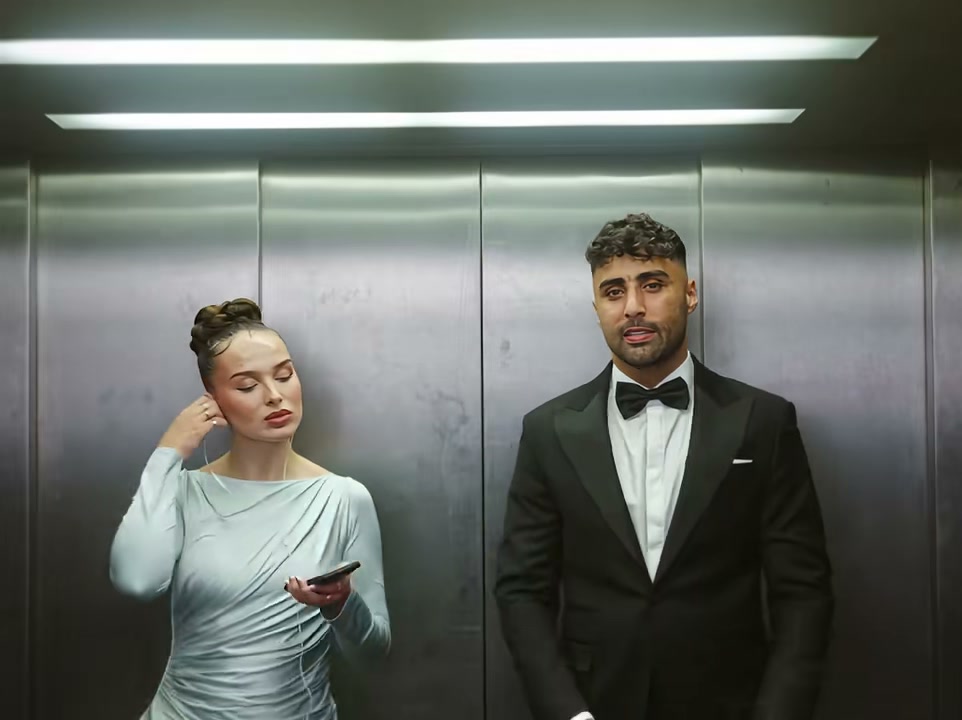
Doing the 365 elevator trend on 365 Elevator AI takes four taps on one page: Walks in, Sings, the quality, and Create.
Put a photo on each pin, keep 720p and press Create on our 365 elevator AI generator.
Step 1: Put Photo 1 on the Walks in Pin
Open 365 Elevator AI in your browser. Tap the left circle, "Walks in", or drop a photo onto it; it's tagged "Required". It's for the one who walks in and tunes out.

Step 2: Put Photo 2 on the Sings Pin
Tap the right circle, "Sings", or drop the second photo onto it. The counter under the stage changes from "Your two photos 0/2" to "Your two photos 2/2". If the photos end up on the wrong pins, drag one circle onto the other and they'll swap.

Step 3: Keep the Box Ticked and Pick 720p or 1080p
The tick box under the photos comes ticked when the page opens. It confirms you've got the right to use these photos and that every person in them is 18 or older, so leave it ticked.
The switch at the top of the generator shows "720p" and "1080p" beside "14s · 4:3", and 720p is already on when the page opens. A 720p video uses 500 credits and a 1080p video uses 1,480 credits. The Create button shows the price for your pick before you pay.
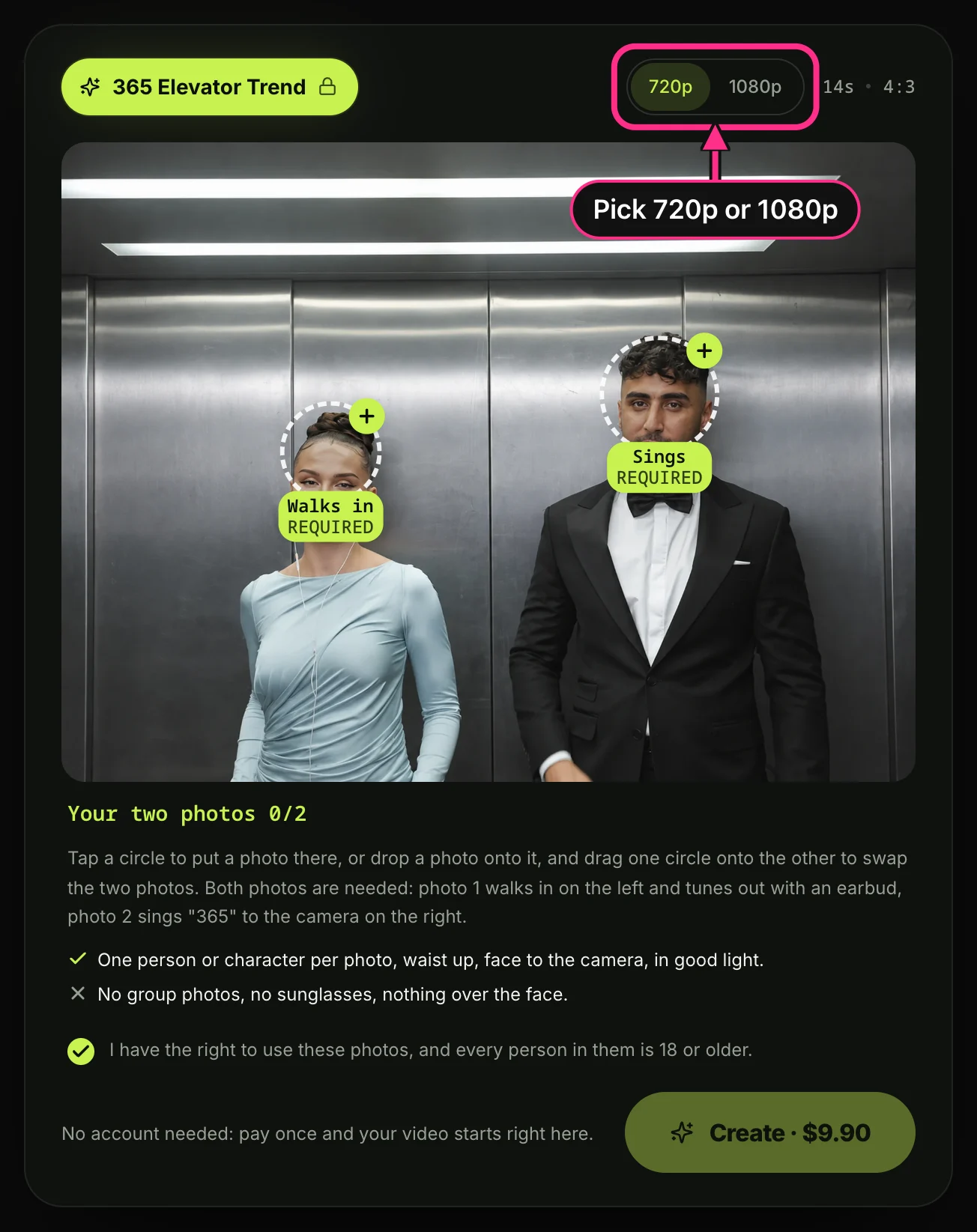
Step 4: Press Create
Press the Create button, which reads "Create · $9.90" at 720p. There's no prompt or note box to fill in, because the elevator, the earbud, the moves and the song are built in.
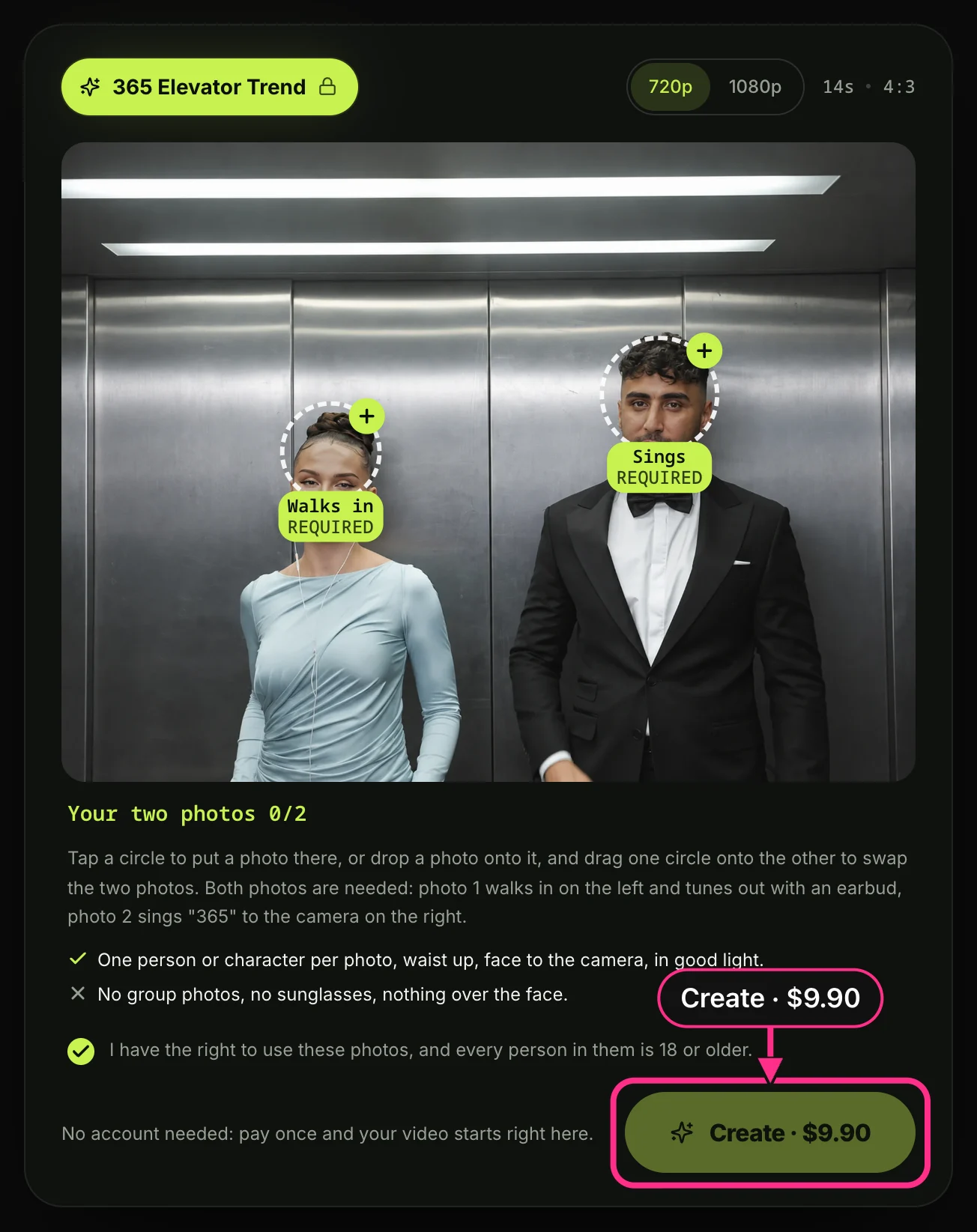
You don't need an account to start. A window opens with one credit pack for your video: "Credit pack", 500 credits, valid 365 days, $9.90, one-time.
There's a "Buy 500 credits · $9.90" button, and the window tells you "Your render is saved — it resumes right after checkout." You can check the details for every credit pack.

After you pay, the page says "Payment received." and "Your video has started." The video's made on the same page and lands in My videos.
You'll save the MP4 with the Download button in My videos. The email from checkout, sent to the address you paid with, carries a link that signs you in, so the video opens on any device.
How Do You Pick Two Photos for a 365 Elevator Trend Video?
The two photos you pick for a 365 elevator trend video set each person's face, hair and outfit for all 14 seconds, so you're choosing the look for the whole take.
Here's what works best for each photo:
- One person or character: put one person or one character in each photo.
- Waist up: frame each person from the waist up.
- Face to the camera: turn each face to the camera.
- Good light: use good light on each person.
- A clear face: keep sunglasses off, keep hair and hands away from the face, and keep eyes open.
- The singer's mouth: pick a photo where the mouth is easy to see for the Sings pin.
The clothes and hairstyle in each photo are what each person wears in the elevator. The background of the photo doesn't matter.
Have both people in the same picture? Crop each person into their own photo and put one on each pin.
That's the whole job: photo 1 on "Walks in", photo 2 on "Sings", then Create. You'll get the 14-second 4:3 elevator take with "365" under it, $9.90 at 720p with no account. You can test your pair now with the 365 Elevator AI generator.
What Happens on Screen From 0 to 14 Seconds?
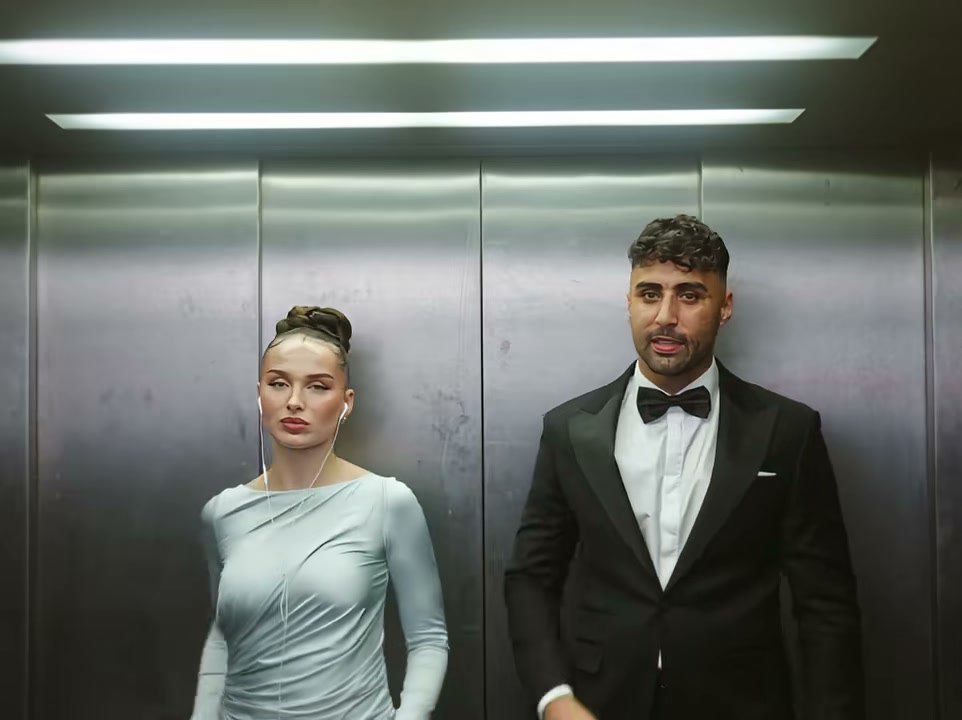
A 365 elevator trend video runs 14 seconds in one continuous shot with no cut, and your two people play the whole take.
Here's the take, second by second:
- 0 to 0.9 seconds: the doors slide open on the one who sings, already singing, with a hand on the chest.
- 0.9 to 2.8 seconds: the one who walks in comes in back first, turns round and tips the head back with the phone in hand.
- 2.8 to 5.2 seconds: the earbud goes in and there's one look at the phone, while the singer keeps going with the hands.
- 5.2 to 9.3 seconds: the phone drops, the eyes half shut, and they're gone, while the singer runs a hand over face and hair and leans in to the lens.
- 9.3 to 14 seconds: a raised finger and an open hand come on the last line, and the other one never reacts.
The steel elevator, its two strip lights, the sliding doors, the phone, the white wired earbud, every move, the timing and the song stay as in the post. Each person's face, hairstyle and outfit for all 14 seconds come from your photos.
That's the take in the trend's post by @neoausdermatrix33 on TikTok, which went up on 21 November 2026 and had 1.2 million views by 23 November 2026.
That's the take you step into when you make a 365 elevator AI video.
How Do You Post Your 365 Elevator Trend Video on TikTok and Reels?
Posting your 365 elevator trend video on TikTok and Reels takes no editing, because it's already a 14-second 4:3 MP4 with "365" under it.
The song under it is the first 14 seconds of the "365" sound on TikTok, the same stretch the elevator posts use. That sound was under 8,277 TikTok videos on 25 November 2026.
- The caption: borrow the account's question, "wen wollt ihr als nächstes sehen?" (German for "who do you want to see next?"), or ask it in English.
- The tag: tag the friend you put on the Walks in pin.
- The pair: name who's in the elevator, since the unexpected pairing is the whole joke.
You'll add your caption in TikTok or Reels as you post.
What Other Ways Do People Do the 365 Elevator Trend?
People also do the 365 elevator trend with a CapCut template or with a written edit prompt in a video tool, and each asks for something different before you start.
- A CapCut template: it's a ready-made edit inside the CapCut app. Tutorials send people to it through a "CapCut · Try this template" link under the TikTok post. The four templates the tutorials link each take one replaceable clip, and the most used one had 17,359 uses on 27 November 2026. You can check our guide to the 365 elevator trend CapCut template.
- A written edit prompt: it works in a video tool that takes the trend's take plus a photo of each person. You write the prompt and add the song yourself afterwards. If you'd rather go that way, you can read the full 365 elevator AI prompt.
- Other sites: you can compare options in the best 365 elevator AI generators.
If you want a custom prompt for two specific people, that's the route: write it out yourself or follow the prompt guide. With 365 elevator AI, the take, the two parts and "365" are already in place, each person gets their own photo and pin, and the price shows on the Create button.
365 Elevator Trend How-To Questions
Can I do the 365 elevator trend on my phone?
Yes. 365 Elevator AI runs in the web browser on a phone, tablet or computer, and there's nothing to install.
Do both people need to be in the same photo?
No. Each pin takes its own photo of one person or one character, so you'll bring two photos.
Have both people in the same picture? Crop each person into their own photo and put one on each pin.
What if I put the photos on the wrong pins?
Drag one circle onto the other and the two photos trade places. Whoever's on Sings performs "365", and whoever's on Walks in plugs in the earbud and tunes out.
Do I need to add the song "365" myself?
No. Every 365 Elevator AI video already has the first 14 seconds of the "365" sound under it. The track's story is on the 365 Sampagne AI page.
How do I open my video on another device?
Open the link in the email from checkout (it's sent to the address you paid with) and sign in. Your photos and videos stay in your account until you delete them.
What happens to my credits if the video fails?
The credits go back to your balance automatically, and you can press Create again. Pressing Create holds the credits, and they're spent only when the video is ready.
Cast Your Pair and Do the 365 Elevator Trend
Pick who sings and who tunes out, put a photo on each pin, and press Create to put your pair in the 365 elevator. You'll get the trend's own 14-second take with "365" under it. It's $9.90 at 720p, with no account.
Written by the 365 Elevator AI Team; we checked each price, pin name and button label in this guide against our live page on 27 November 2026.
Related Articles
- 365 Elevator Trend Explained: Who Sings, Who Tunes Out — where the elevator, the song and the unexpected pairs came from.
- 365 Elevator Trend CapCut Template Not Working? 5 Fixes — which template the tutorials link and what to do when it stalls.
- Best 365 Elevator AI Generators (2026): 6 Tools Checked — the sites that make the elevator duo, side by side.
- 365 Elevator AI Prompt: The Full Edit Prompt, Line by Line — the whole edit prompt, for anyone who'd rather write it out.


